RAMS: build the website around your world
The fourth Studio environment
Select RAMS after QWAY, WRIGHT and RIDLEY. It is a full workspace with a room tree, source editor, contextual Inspector and complete website preview. QWAY owns objects, WRIGHT owns spaces, RIDLEY owns direction; RAMS owns the website that presents them.
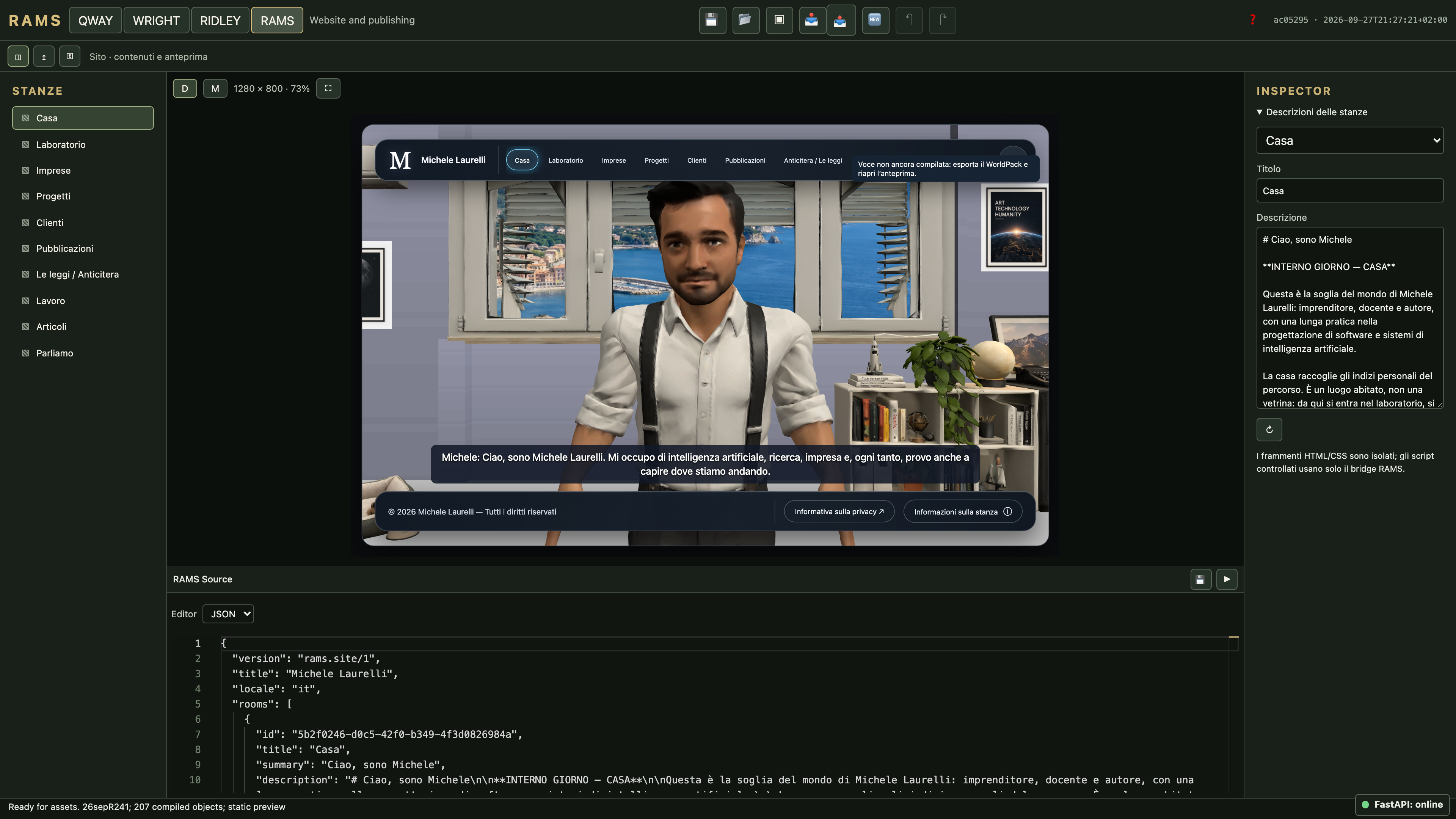
| Control | Purpose |
|---|---|
| ◫ | Return to website editing. |
| ↥ | Open the Deployment Manager inside RAMS. |
| ⚿ | Open installation credential settings. |
| D / M | Simulate the desktop or mobile website. |
| ↻ beside M | Rotate the simulated mobile display. |
| ⛶ | Expand the website preview. |
| ▶ | Refresh the world used by the preview. |
| 💾 | Save the RAMS project. |
Publishing and credential controls belong to RAMS, not the global toolbar. In production, remote publishing and the installation vault are available to the superadministrator. Other approved users retain website editing and project/WorldPack export.
Write the room as a scene
Select a room in the tree or Inspector. Write a title and a short description of what the visitor experiences: the entrance, the first visual impression, a focal point and the transition to the next space. Use readable paragraphs rather than an inventory of meshes.
The visitor enters beneath a broad circular canopy. Light gathers around the central mechanism; a lectern invites a closer look. Along the perimeter, smaller objects turn the room into a sequence of discoveries.
This is editorial prose. Object identity, position, available actions and exits still come from the compiled world. Generated descriptions fill missing entries without replacing your existing copy. Review generated text before publication.
- Select the room and edit its title and description.
- Use JSON source for site-wide navigation, theme, room routes, footer and presentation settings.
- Choose HTML, CSS or JS when editing a configured fragment. Check the selected fragment before typing.
- Validate the result in the preview, then save the project. Invalid source remains a recoverable draft; the last valid configuration can remain visible.
Preview a real display, not a cropped canvas
Desktop simulates 1280 × 800 CSS pixels. Mobile starts in landscape, 844 × 390 CSS pixels; rotate to inspect the portrait orientation gate. The entire display is scaled uniformly to fit the available preview area. The displayed percentage is the preview fit scale, not camera zoom or an object scale.
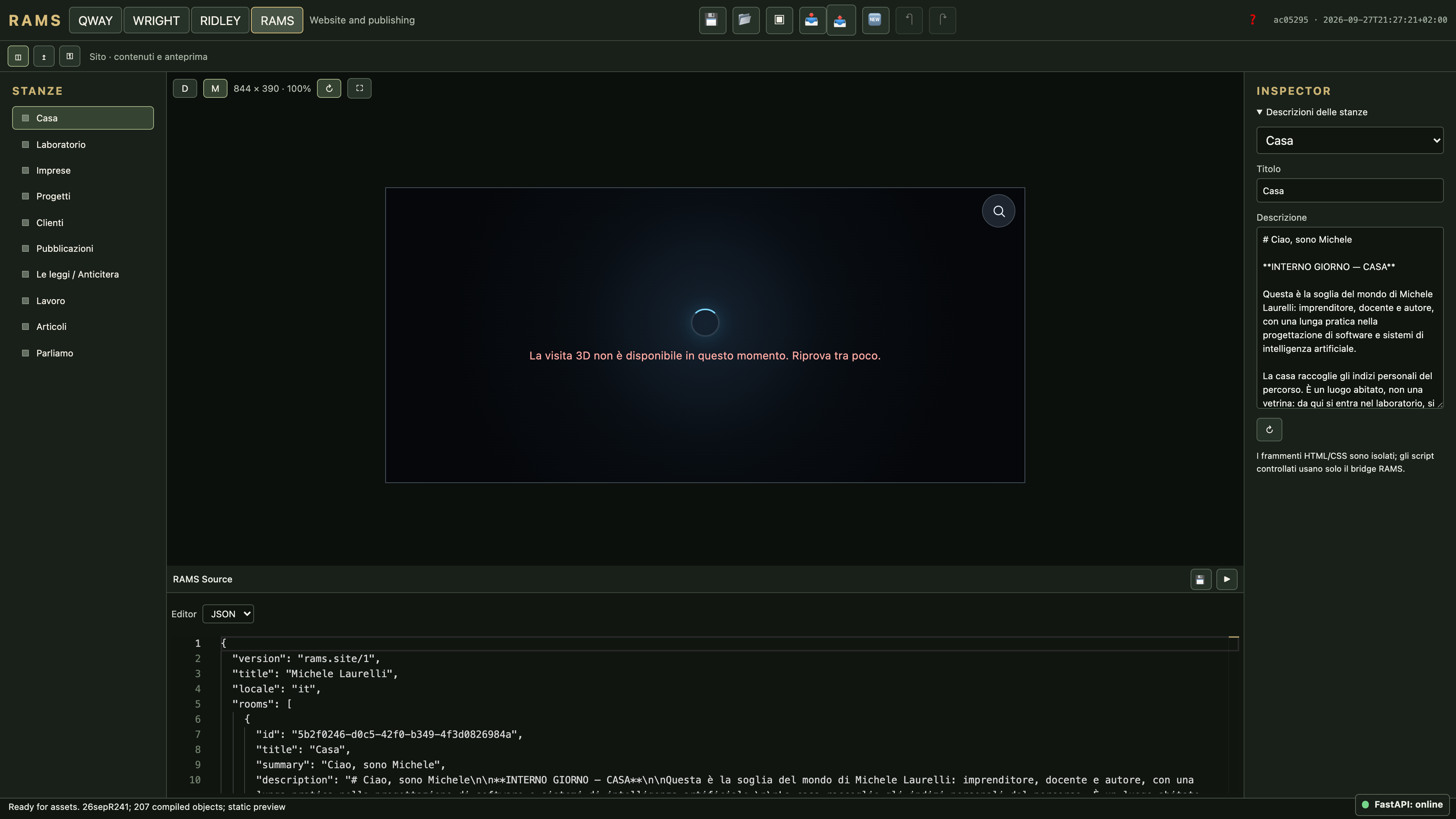
The captured project exceeds the mobile resource residency budget (WORLD_RESIDENCY_BUDGET). Waiting longer does not resolve this error. RAMS previews original project resources; test the optimized mobile WorldPack separately and reduce the resources required together if necessary. The player, menus, overlays, typography and CSS breakpoints run inside that fixed-size iframe. Expanding the preview gives the same simulated display more space; it does not enlarge the character within the website. A Retina backing buffer must not enlarge the CSS canvas.
Wait for scene loading, textures, the player and any opening sequence to settle before assessing composition. RAMS editor previews use the original project assets with the selected renderer profile. To inspect the actual optimized media, use the desktop/mobile previews after WorldPack export.
Navigation, content and the player
The default shell and optional portfolio presentation share one WorldPlayer. Opening a room article, page, overlay, contact panel or chat should not replace the 3D world with a new player. Navigation targets stable room/object identities. Changing a human-facing title does not create a new room.
The portfolio presentation supports floating navigation/footer, room search, walking navigation, a welcome/audio choice and the mobile landscape gate. Room URLs are generated during static installation for direct entry. Test direct links, browser Back/Forward and in-world movement together: the room article must follow the actual destination.
Contacts and external services
Place the contact content in the intended contact destination, such as Let’s Talk. Configure a real endpoint and fallback contact information before publication. With no endpoint, RAMS does not invent a working delivery service. The editor preview disables actual contact submission.
The contact endpoint must validate requests, control abuse and send the message. It is separate from the SMTP service used by production Studio accounts. An account recovery mailbox does not automatically become a website contact-form backend.
HTML, CSS and controlled scripts
Fragments run in an isolated frame. Safe HTML/CSS is sanitized. A controlled script can use only the validated RAMS bridge for configured actions such as room navigation, object focus and opening a page/overlay; it does not gain access to the editor DOM or provider keys. Embedded websites require an explicit HTTPS origin allowlist.
Keep fragment code bounded. Frame isolation is not a CPU quota for an infinite loop. WorldPack integrity checks do not establish that arbitrary bundled application code is trustworthy.
From preview to a published site
Save a .qway working project first. Compile the intended source and correct invalid/stale drafts. Export a WorldPack with valid RAMS configuration, verify it, then install/extract the complete website. Publish the extracted files or use RAMS Deployment Manager. The visitor-facing site does not need the Studio editor or its login to play the compiled world.