Studio interface and shared state
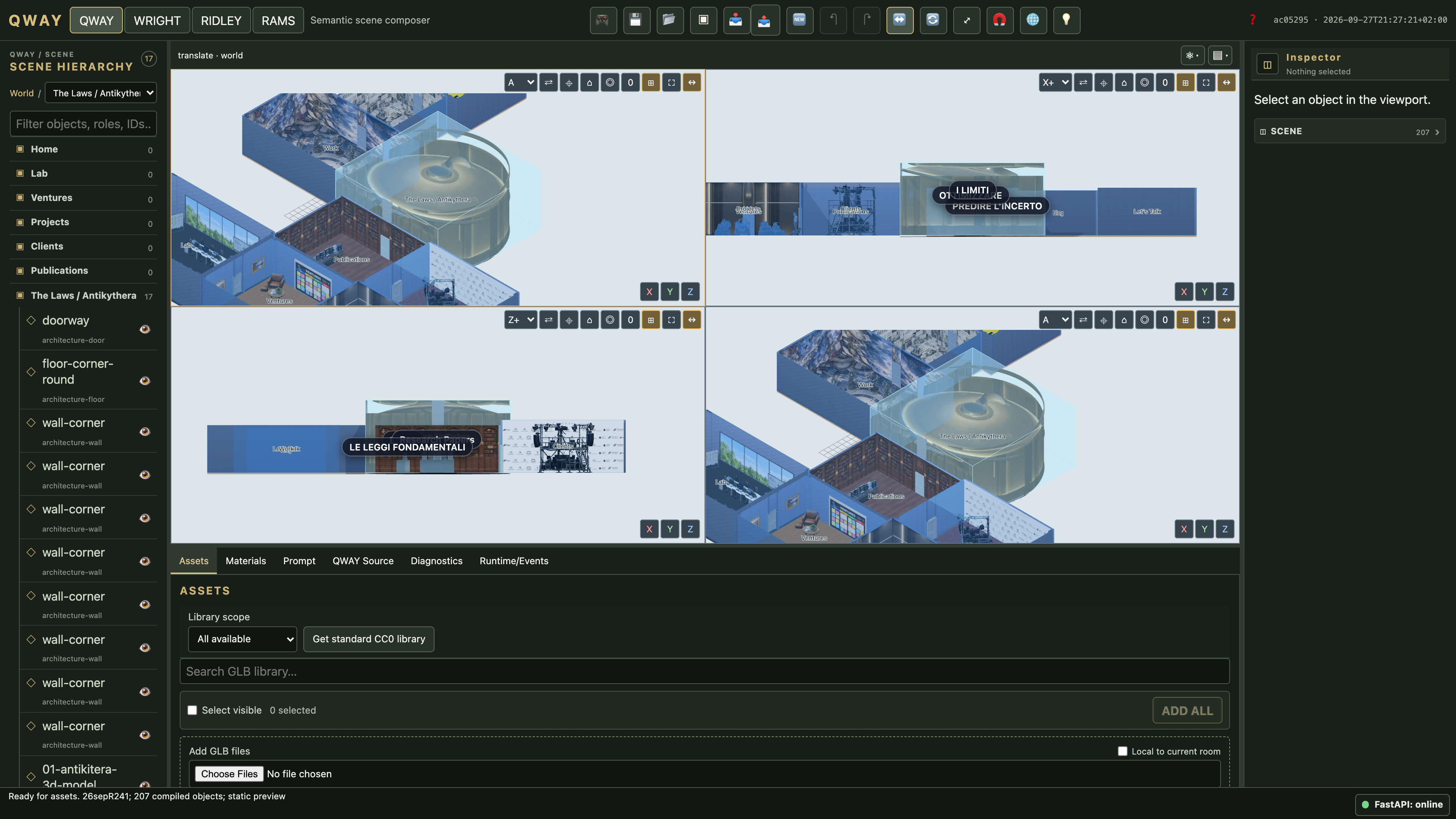
Layout
The left hierarchy controls selection. The center is the primary Three.js viewport. The right inspector follows the selection. Bottom tabs expose the current domain’s tools. Resize dividers to see source and viewport together; switching tabs does not switch projects.
The top bar identifies the active workspace and its purpose. It contains preview 🎮, save, new project, undo/redo, camera/viewport controls and global Help ❓ at the right. Help opens a separate static documentation tab and leaves current edits intact.
Domain-specific views
| Mode | Bottom views | Meaning |
|---|---|---|
| QWAY | Assets; Materials; Prompt; QWAY Source; Diagnostics; Runtime/Events | Object authoring and geometric inspection |
| WRIGHT | Prompt; Diagnostics | Room/world tools in hierarchy and contextual inspector |
| RIDLEY | Prompt; Screenplay; RIDLEY Source; Timeline; Audio; NPCs; Diagnostics; Runtime/Events | Direction and interactive experience |
| RAMS | Website source; room Inspector; device preview; publishing; credentials | Website presentation and releases around the same world |
RAMS deployments
Select RAMS, then ↥ for publishing or ⚿ for credentials. Both open inside the RAMS workspace; they are absent from the other three environments. See the complete publishing workflow. Production publishing is restricted to the superadministrator; local mode remains open.
Editor camera views
QWAY, WRIGHT and RIDLEY share the same camera tools. Select X±, Y± or Z± for an orthographic axis view, A for axonometry, P for perspective. ⇄ reverses the view. The X/Y/Z buttons align an axis; click again for its opposite side. Front is viewed from +Z; top from +Y.
⊞ opens four configurable views: top, right, front and axonometry. ⛶ maximizes the active region. Drag a divider or focus it and use arrow keys. ⌖ (or F with viewport focus) frames the selection, ⌂ the current room, ◎ the world, and 0 the origin. All views share their center: panning one updates the others. ↔ links orthographic zoom; toggle it for independent zoom. Right drag or Shift-left drag pans; wheel zooms; A/P allow orbiting.
The local view preferences survive reloads and workspace changes. Preview temporarily uses its own perspective camera and restores the editor layout on close. Camera commands do not change authored geometry or cinematic cameras. Hover a compact icon to read its tooltip; every command is keyboard accessible.
Accepted source and invalid drafts
Text editing creates a draft. Compile preview validates references, units, pinned features and geometry. Only a successful compilation replaces the visible compiled scene. An invalid draft remains editable while the previous valid scene stays visible. Do not interpret the visible scene as proof that the current draft compiled.
Visual and prompt edits are typed semantic operations against the same source revision. Stale async results are rejected. Undo/redo spans source and visual edits. Save stores the project envelope, accepted state and draft diagnostics; runtime movement does not silently become authoring.
Mouse and keyboard
Select an object in the hierarchy or viewport. T selects translation, R rotation, S scale when viewport shortcuts own focus. The transform-space toggle changes local/world manipulation. Text editors consume their own keys. Tab reaches labeled controls; bottom-tab navigation supports arrow keys, Home and End. Right-click an object for actions also available in its inspector.
If gizmos disappear, confirm the object is visible/unlocked, compilation or playback is not active, the source draft is accepted, and the object is in view. Use Focus object. Do not repair a transient runtime pose by rewriting unrelated source.
Wait for a complete render
A successful compile and a finished render are separate milestones. After opening a large project or changing a room, allow model downloads, image decoding and GPU uploads to finish. Check the bottom status, missing-resource diagnostics and the actual view. Frame the active room or selection before judging a blank or distant scene. RAMS has its own player-loading and device-fit stage.